The USB-C port
In this article, we will learn how to recognize the differences between them
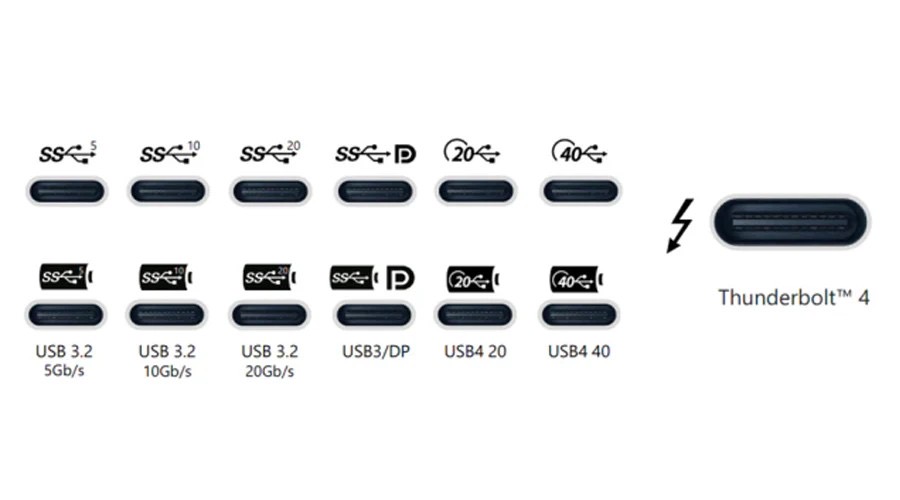
A few weeks ago in DigiTIAMO, we talked about the colors of old USB ports. Black, blue, red—each with a specific meaning. Today we take a step forward and move on to the new standard, the USB C port. Here, color no longer helps. Everything looks the same. The difference is made by the small symbols printed next to the socket.
If you look at your laptop, near the USB C port you often find acronyms like SS 5, SS 10, SS 20. SS stands for SuperSpeed. The number indicates the theoretical maximum speed in gigabits per second. In practice: SS 5 is a fast port, SS 10 even more so, and SS 20 is designed for very fast external drives. If you need to copy a lot of data or perform a backup, it is best to use the port with the highest number, provided the device is also recent.
Other times, near the USB C port, you will find the classic USB symbol with a small DP label. This is where video comes into play. DP stands for DisplayPort. It means that the port doesn't just manage data, but can also send a signal to an external monitor. If you connect a screen via a USB C to HDMI or DisplayPort adapter, this is the preferred socket. If you use a port without DP, the monitor might not receive anything or might limit itself to charging the computer.
Then come the acronyms USB4 20 and USB4 40. These indicate the latest generation of USB technology. The same USB C connector, but with much higher capabilities. Here too, the number represents the maximum speed in gigabits. A USB4 20 port handles high-performance data, video, and charging. A USB4 40 port goes even further and is ideal for docks, multiple 4K monitors, external solid-state drives, and workstations with a single cable to the laptop. In many cases, you can also power the computer through these ports without the need for a dedicated charger.
Then there is perhaps the most recognizable symbol: the lightning bolt. When it appears next to a USB C port, it indicates Thunderbolt 4. This is a standard compatible with USB4 40 but with stricter minimum requirements. Those who edit video, work with heavy photos, or use professional docks prefer this type of port. It allows you to connect multiple high-resolution screens, transfer large amounts of data, and charge the laptop all at once, with a single cable.
In daily practice, these differences matter more than it seems. Connecting a fast drive to a limited port means waiting extra minutes or hours for a copy. Using the wrong USB C for a monitor leads to black screens and cables that "seem faulty." Plugging the charger into a port that doesn't handle charging powers the device halfway or not at all.
The rule is simple. Before connecting a device, take a look at the small icons next to the port. For external drives, choose SS 10, SS 20, USB4 20, or USB4 40. For monitors and docks, look for DP or the lightning bolt. For keyboards, mice, and slow peripherals, any USB C will do.
The shape of the connector is no longer enough today. Two sockets that look identical to the eye can offer completely different performance. Understanding these symbols means making better use of what you already have, avoiding pointless frustration, and truly making your computer work at its full potential. It’s the classic case where a technical detail, explained simply, saves you time every day.